Sign Android APK
Majd Abuleil
3 min read
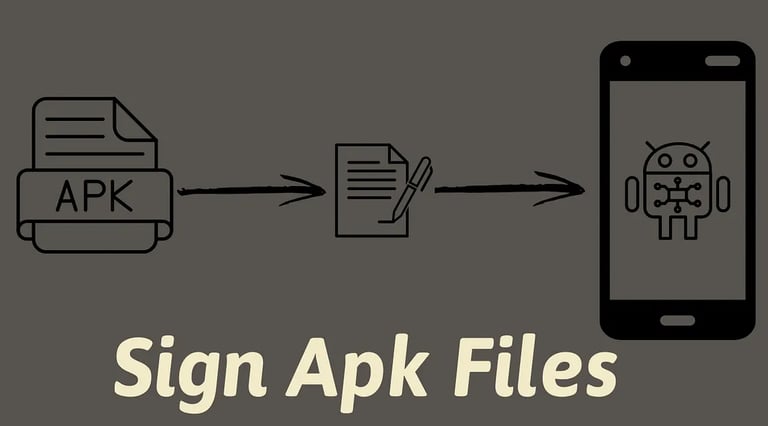
Why do we need to sign the application?
The application are packaged in apk format like [ app.apk ]
This APK file will not run and be installed on Android phones or any phones if the application is not signed, this signature tells the phone that this app [APK file] is safe to download and run, so If a hacker reverse-engineers the app, and modifies its code, the original signature will no longer match, requiring a new signature to confirm that the changes are legitimate and the app remains trustworthy.
So after we know that signing the app is important for running the app and make it trustworthy let’s dive into the steps to sign the app.
To sign the app we need 3 command-line tools.
1- keytool:
a command-line tool in Java that helps you manage keys
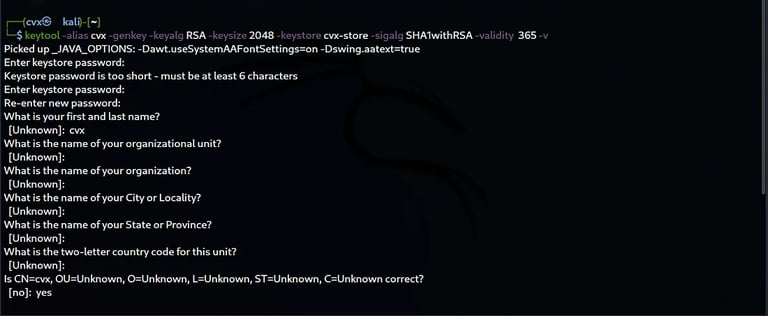
keytool -alias [alias name ] -genkey -keyalg RSA -keysize 2048 -keystore [store name] -sigalg SHA1withRSA -validity [Number of validity] -v
Example:
keytool -alias cvx -genkey -keyalg RSA -keysize 2048 -keystore cvx-store -sigalg SHA1withRSA -validity 365 -v
- alias: means that every APK file that you want to sign will
be refer to this alias name [you can call it whatever you want].-genkey: means that I’m creating a new key [public and private]
-keyalg RSA: The type of key that I’m creating is called RSA’ this is the common method for secure communication
-keysize 2048: The key will be 2048 bits long
-keystore: the place where the keys will be saved in our store that we
call “cvx-store” [you can call it whatever you want].-sigalg: This tells the tool how to sign things using the key
, in this case, we use SHA1 with the RSA.-validity: the time that the key will be valid in our case 365 which means it will be valid for a year.
-v: this means I will see details while the command runs.





2- Zipalign:
Zipalign improves the signed APK so it can be easily shared and works well on Android devices
steps to install the Zipalign:
1- sudo apt update && sudo apt install android-sdk
2- use this command to find the tool: “locate zipalign”
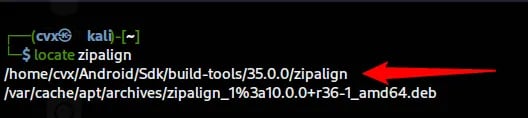

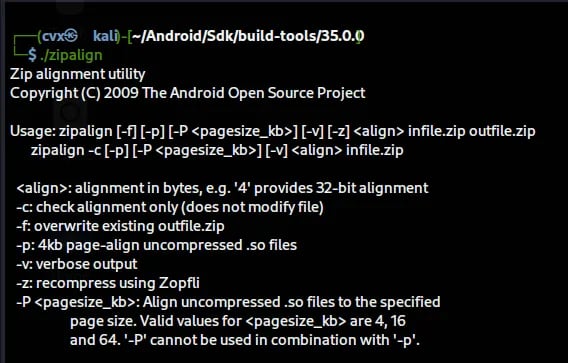
we use this command:
./zipalign -v 4 [the apk file ] [the new apk file]
Example:
./zipalign -v 4 /home/cvx/app.apk /home/cvx/Desktop/app23.apk
./zipalign: to start the tool command
-v: verbose to display information about the process.
4: alignment value
[the apk file ]: here you put the path to the APK file
[the new apk file]: here we name the new APK file like the example, we name it app23.apk and save it in the Desktop path


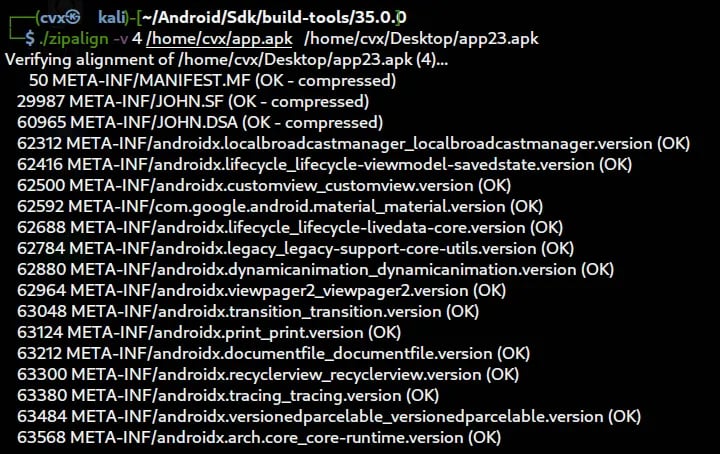
After we finished with these two tools, we came to the final step.
3- apksigner:
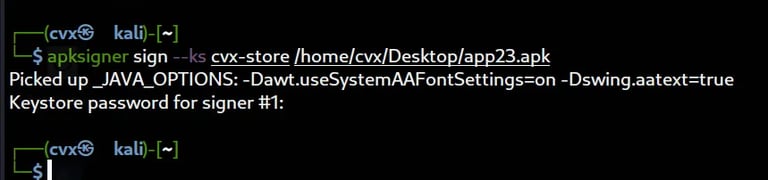
apksigner sign --ks [key store] [the new APK file ]
Example:
apksigner sign -- ks cvx-store /home/cvx/Desktop/app23.apk
apksigner: the command tool for signing APK files.
--ks: is the key-store we create in step one with keytool [you need to remember the key-store password]
[the new APK file]: we put the path to the new APK file that we created in step two using the Zipalign



Contact
Reach out for collaborations or questions.
https://t.me/CvX_0o0
Telegram
© 2025. All rights reserved.